Outgoing app control
The firewall can ask before a program goes online. This needs OpenSnitch, which the desktop setup installs. If it is missing, outgoing app rules cannot be applied; Settings tells you what is missing.
Features
From everyday settings to deeper tools, find your way around Starchaser Linux.
01 / Desktop and themes
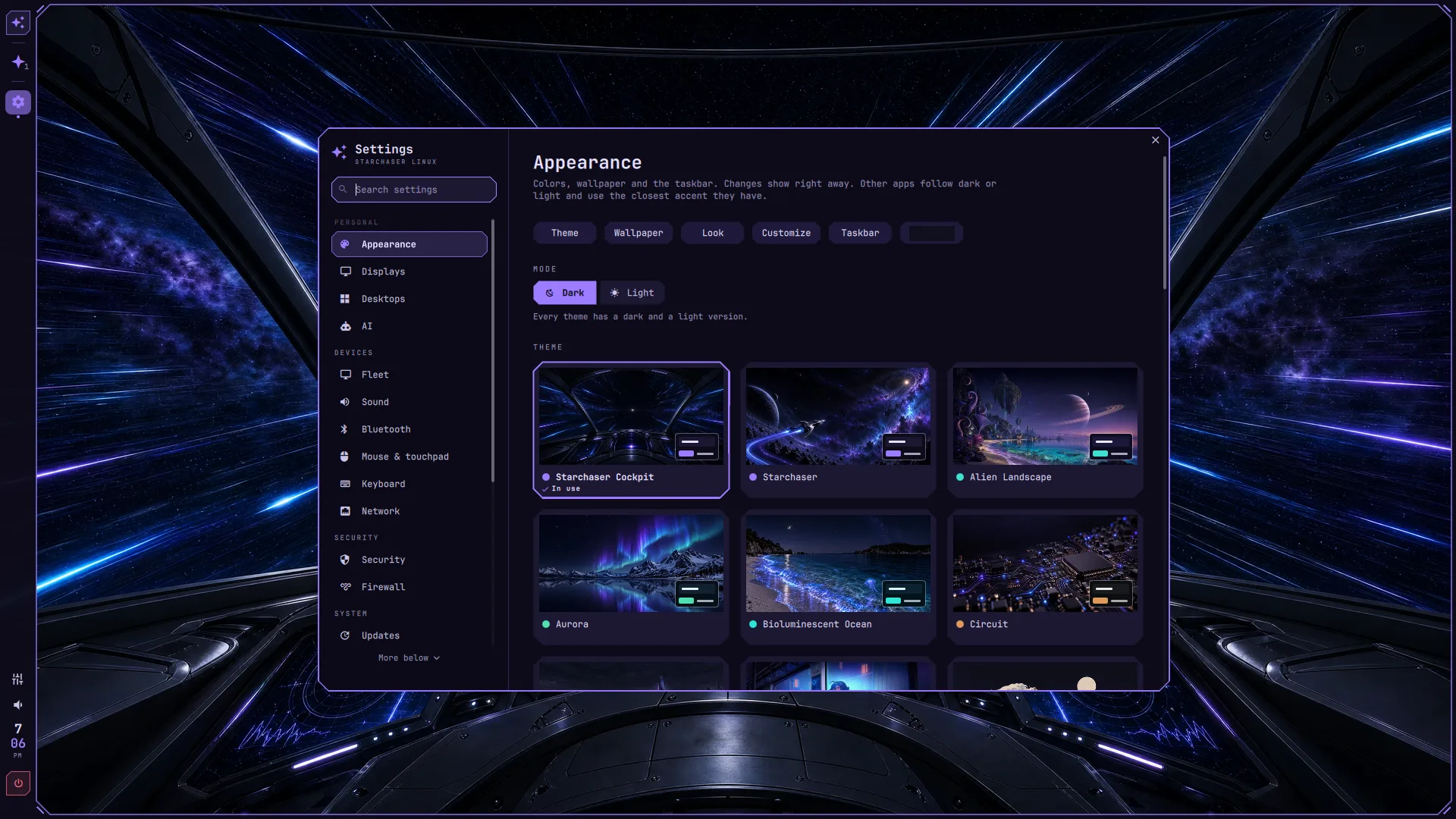
One desktop brings together a slim taskbar, an app menu, quick settings, and a full Settings app. Adjust appearance, displays, sound, network, shortcuts, and more from one place. Choose a bundled theme and a light or dark palette.
02 / Today panel and clock
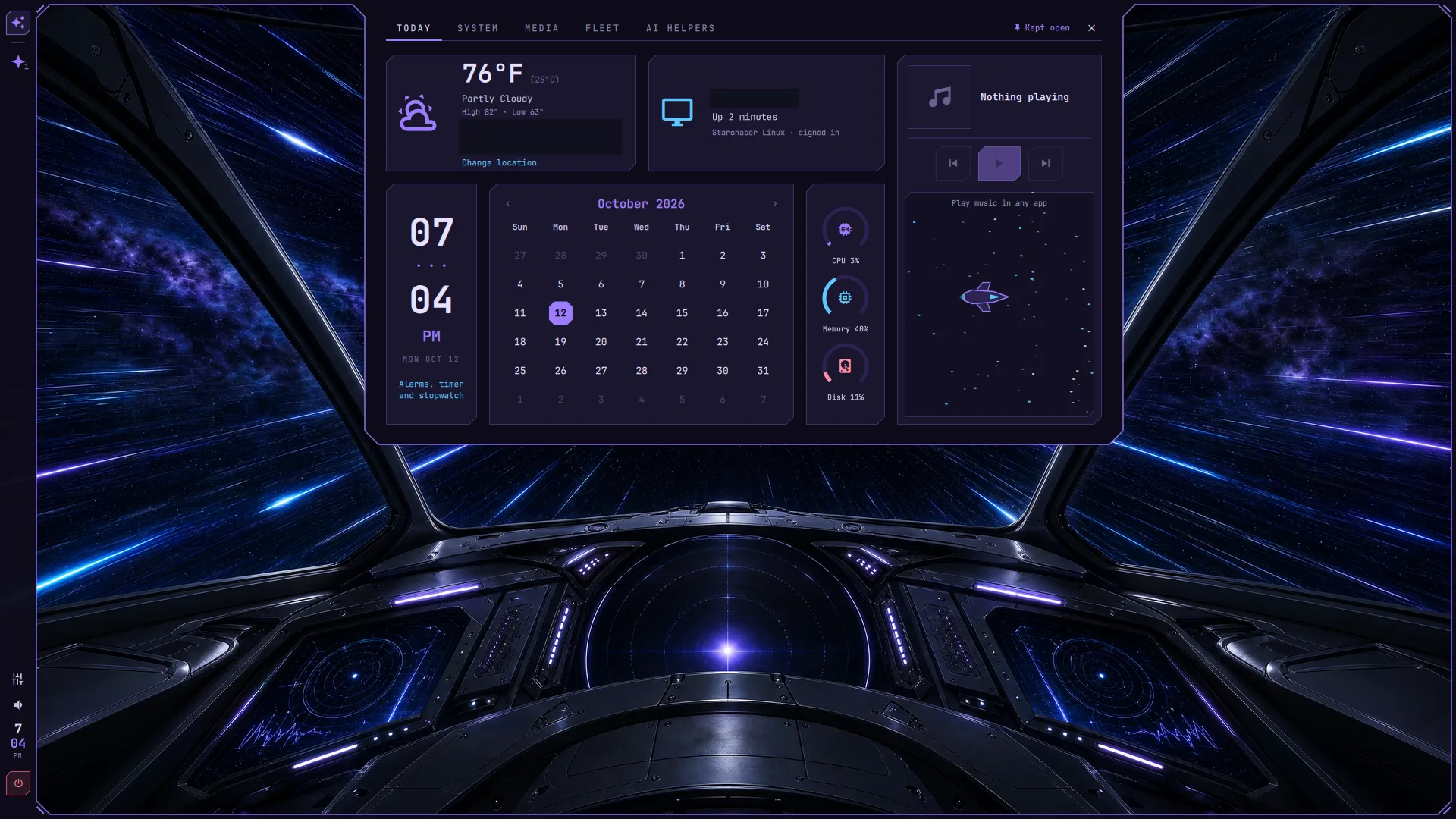
Today gathers the calendar, weather, media, and a view of this computer. The taskbar clock opens a separate panel with alarms, a timer, and a stopwatch.
03 / Built-in firewall
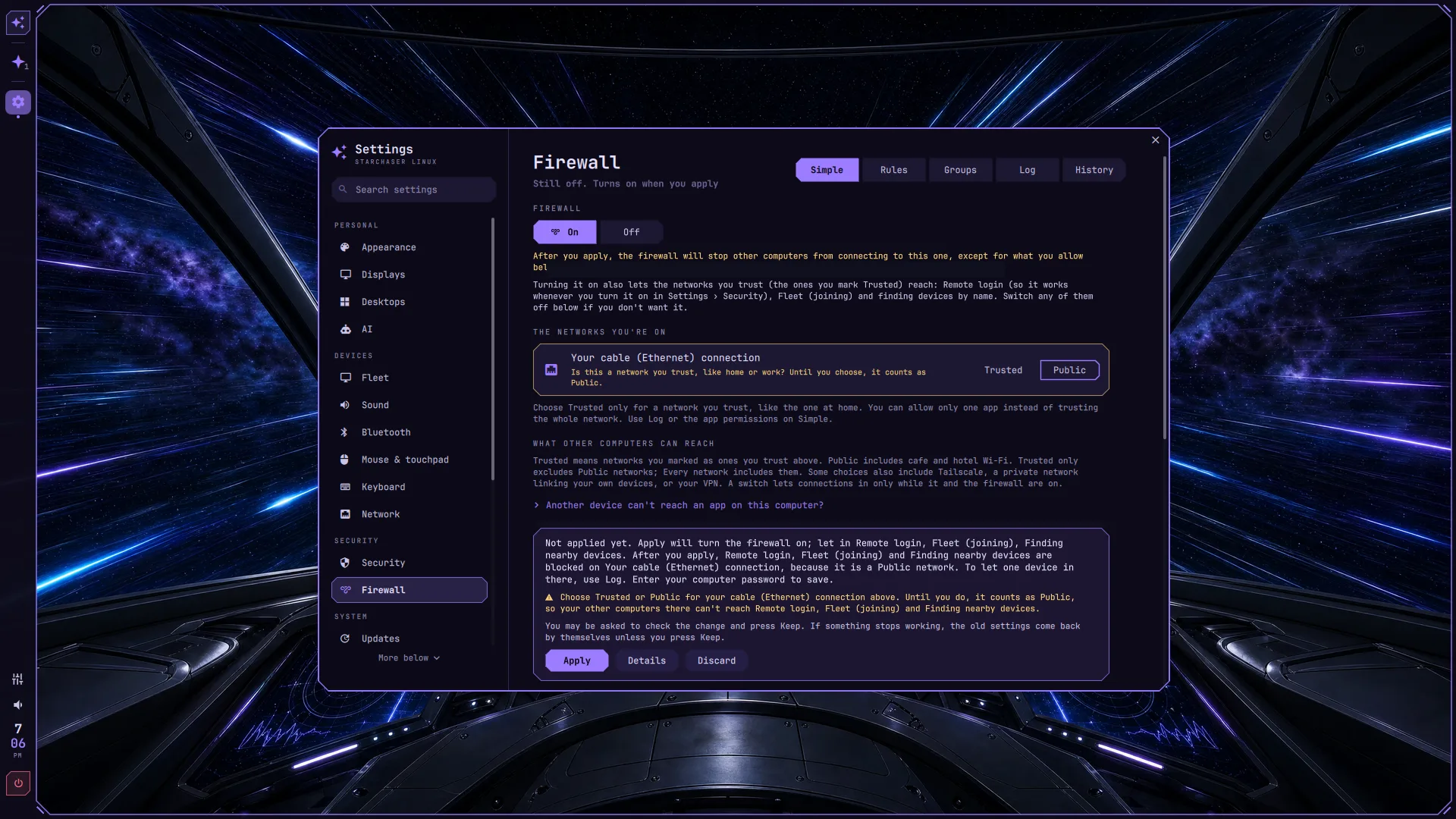
Choose which networks you trust and what other computers can reach. Settings explains the change before you press Apply. If a change asks you to press Keep and you do not, the previous firewall settings return.
04 / Ask about this computer
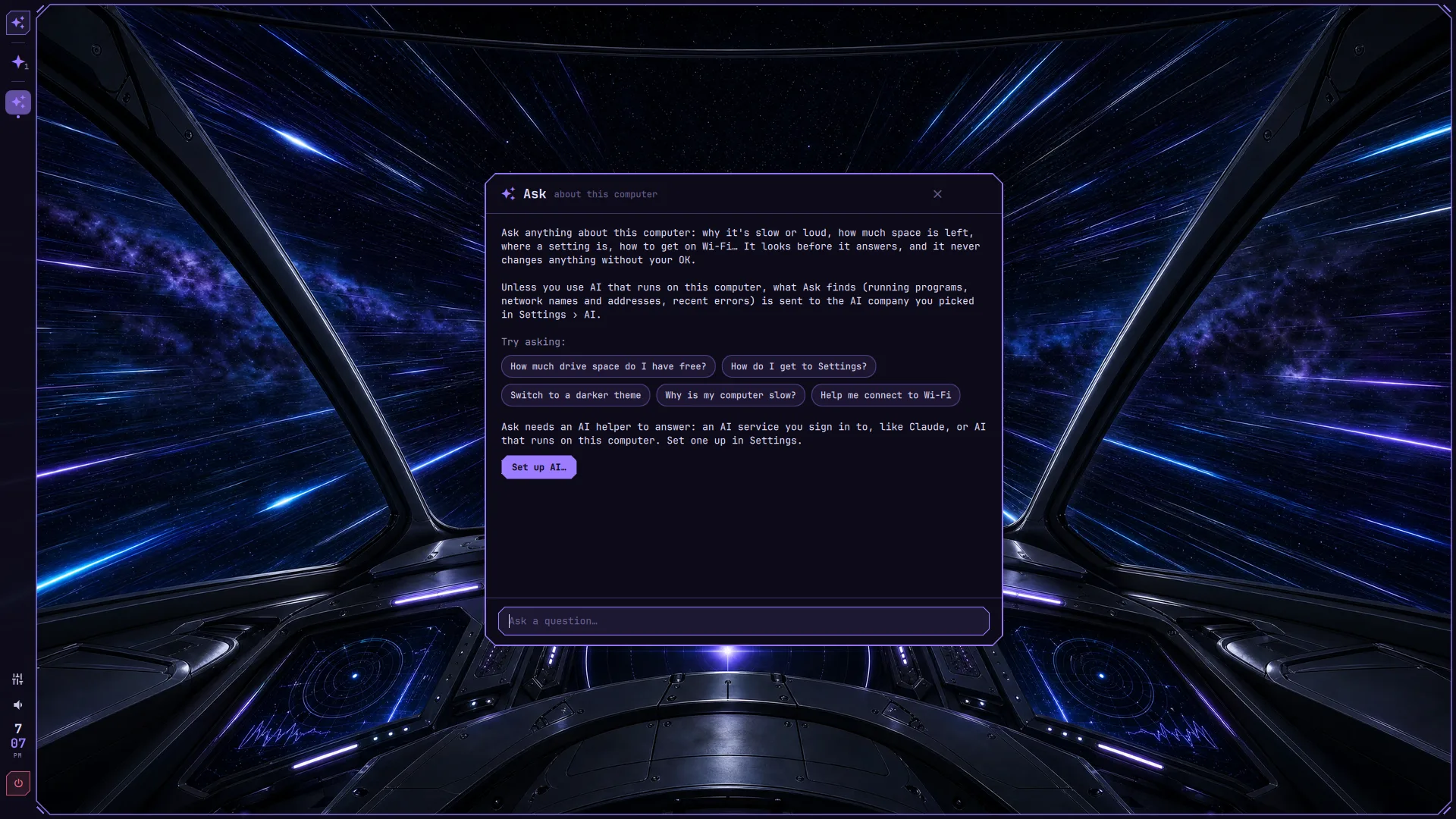
Ask runs read-only checks and explains what it finds in plain words. It proposes actions for you to review and press Apply on; a drafted firewall change still needs review in Settings, and a suggested terminal command waits for Enter. Use local AI through Ollama or your own signed-in AI account. With Ollama running on this computer, checks stay here. External providers receive what the checks found, including running programs, network names and addresses, and recent errors. A remote Ollama endpoint also receives the results.
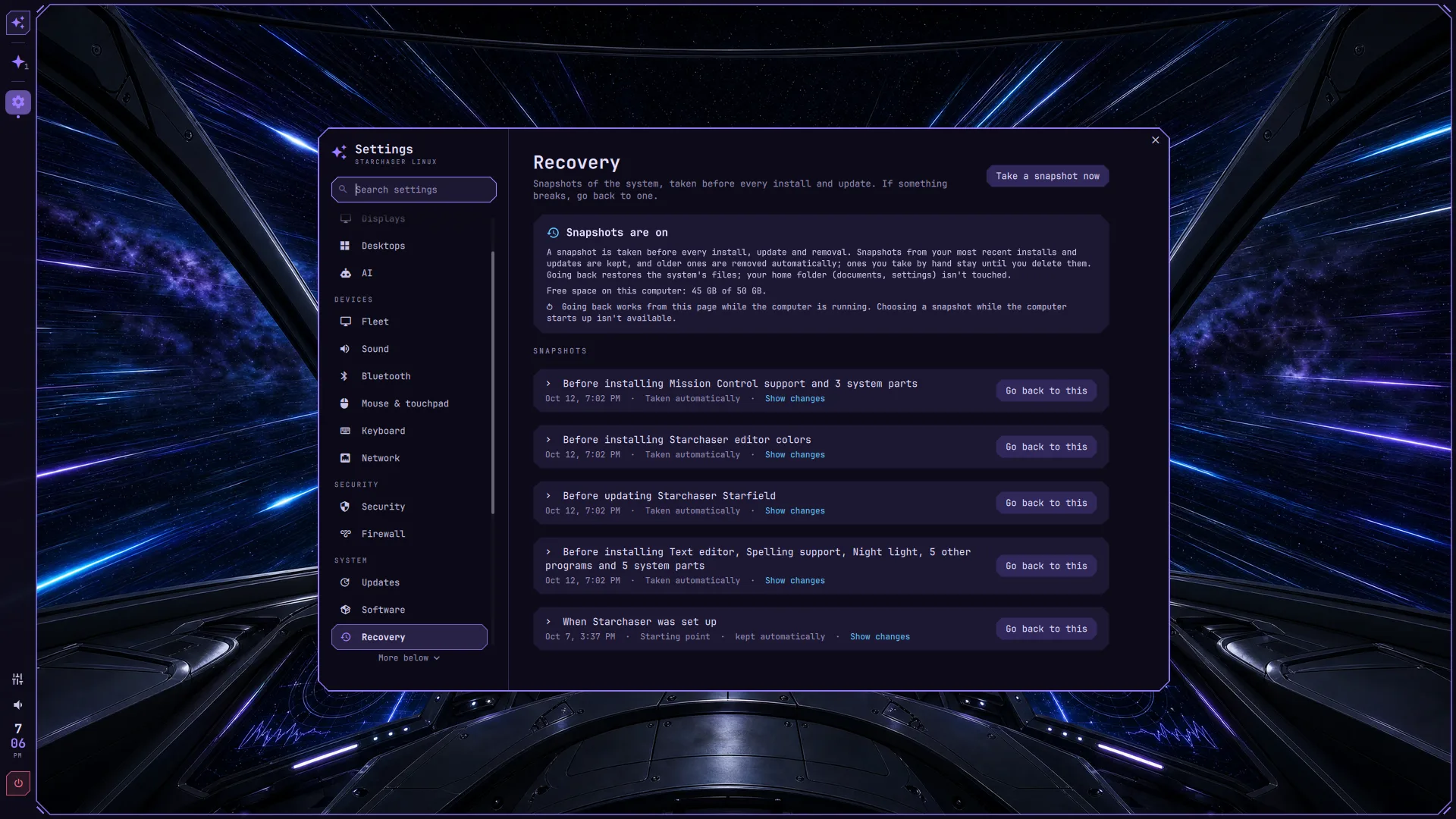
05 / Recovery snapshots
Btrfs snapshots are restore points for your system. Settings > Recovery explains what changed and what going back would undo. Restoring asks for your password; personal files in your home folder stay as they are. Read the recovery guide.
More within reach
The firewall can ask before a program goes online. This needs OpenSnitch, which the desktop setup installs. If it is missing, outgoing app rules cannot be applied; Settings tells you what is missing.
Fleet keeps a shared list of the computers you add. Mission Control brings management of those computers into one place, with permission to manage them controlled by the receiving computer.
See which AI coding agents are working, waiting for you, or done. Supports popular AI coding agents. With the default shortcuts, Super + A opens your default agent. Coding agents have their own permissions; Ask’s read-only limits do not apply to them.
Privacy lights show when the microphone, camera, screen, or location is in use; they report activity rather than block it. USB ask-first controls use USBGuard. In Strict mode, new USB devices—including keyboards—wait for your OK.
A clean, controllable Arch-based foundation for red teamers and security engineers. The ISO includes nmap and tcpdump, not a dedicated penetration-testing suite. A normal root shell, kitty terminal, SSH, and OpenVPN support sit alongside firewall, USB, and privacy controls. Add your tools from the official package repositories; AUR packages are built only when you choose one in Settings.
Touch support includes edge swipes to open panels and a touch keypad for sign-in when a touchscreen is present without a physical keyboard. On-screen keyboard layout support is also present. Tablet use is still being tested; touch is not yet a main focus.
A different perspective
Alien Landscape, Aurora, Bioluminescent Ocean, Circuit, Cyberpunk, Glowcat, Japan, Matrix, Minimal, Nebula, Starchaser Cockpit, Starchaser, Synthwave, and Topographic.
Screensavers can follow the theme. The 15 available styles are Journey, Calm, Warp, Spores, Polar, Logic, Neonrain, Pawprints, Petals, Tunnel, Pendulum, Orrery, Jellyfish, Scope, and Rivers.
See the desktop and screensavers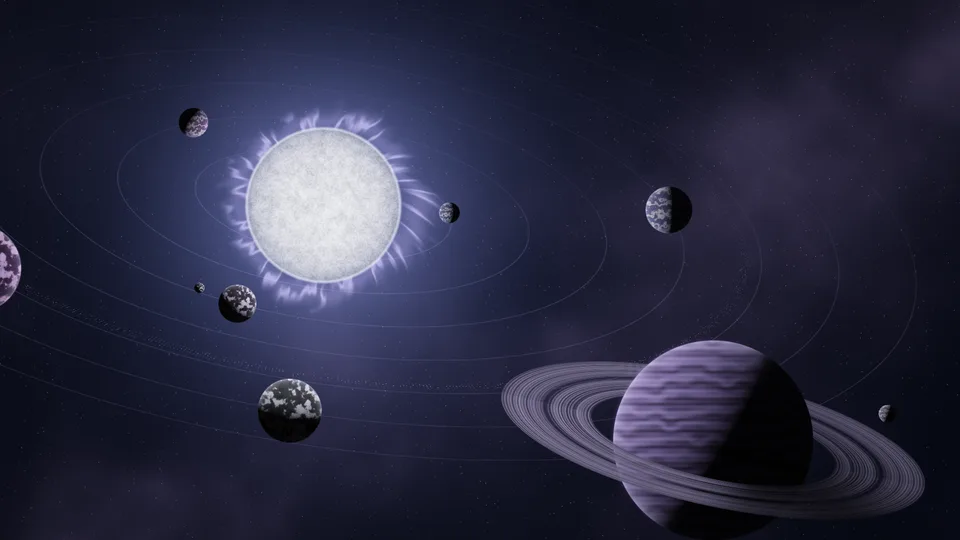
Your next desktop
Version 1.0 is coming soon. Get to know your next desktop.